
How to use Flyingbee PDF Conversion SDK.
How to Run script pdf-converter.ps1
How to invoke a console program in C++ on Windows?
How to invoke a console program in .NET programming?
Update date: 2025-10-13 17:08:37
Try Flyingbee PDF Converter Online for Free, play with PDF to MS Office (.docx, .xlsx, .pptx) conversion on Web.
Powered by Flyingbee PDF Conversion SDK
pdf-converter.ps1 – Usage GuideThis script automates the conversion of PDF files to formats such as DOCX, PPTX, or XLSX using FPPDFConverter.exe. It supports multi-threading, detailed logging, and error tracking.
Before using the script, ensure the following:
Windows 10/11 or Windows Server (PowerShell 5.1 or later)
FPPDFConverter.exe installed and accessible
.NET Framework 4.5+
PowerShell execution policy allows script execution:
Set-ExecutionPolicy RemoteSigned -Scope CurrentUser
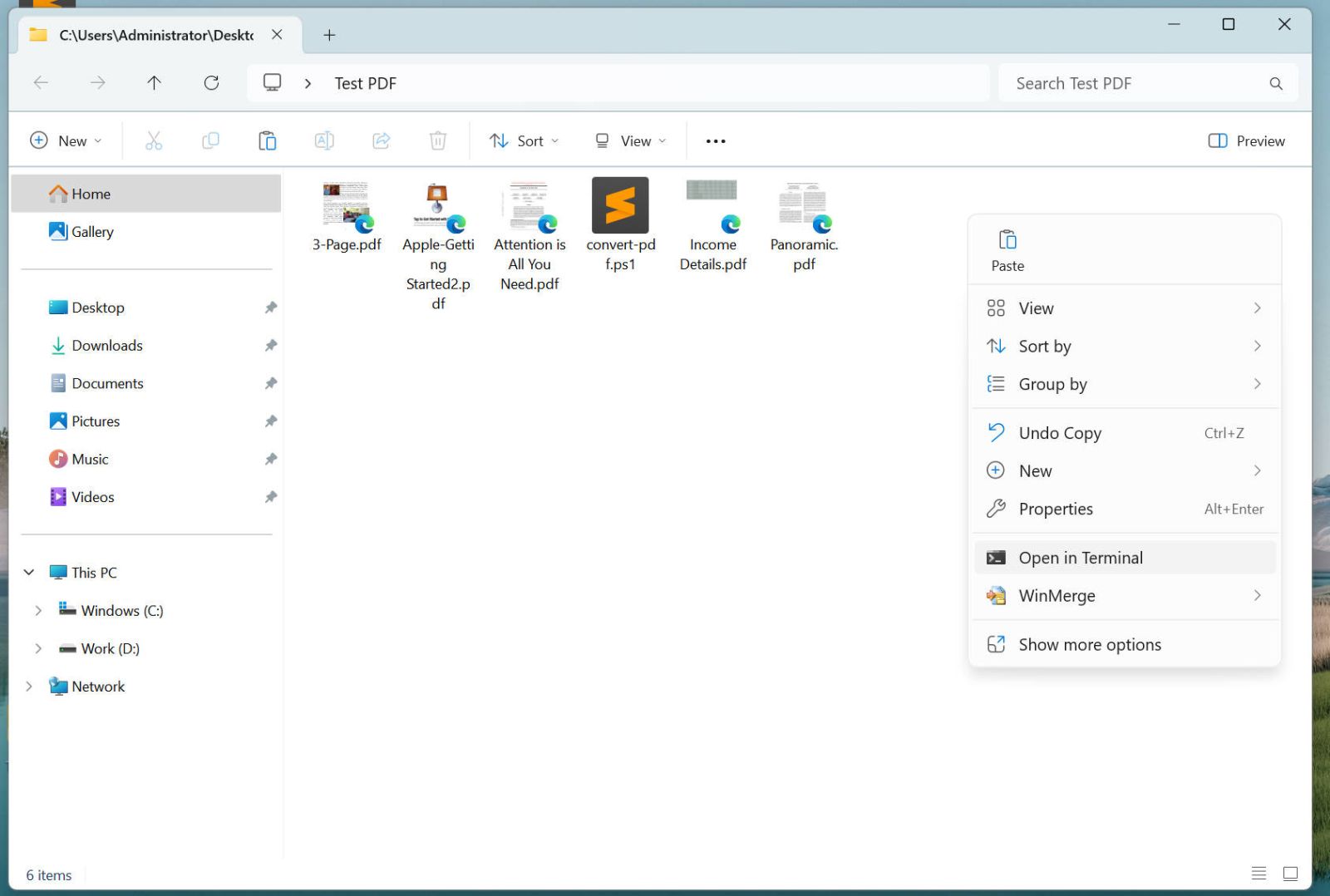
Place the following files in the same directory:
📁 YourPDFFolder/
├── pdf-converter.ps1       ← Script file
├── document.pdf            ← Sample PDF input
└── ...                     ← More PDFs to convert
💡 Run the script from the folder containing your PDF files.
Open pdf-converter.ps1 in a text editor and adjust the following settings:
| Variable | Default | Description |
|---|---|---|
$PDF_DIR |
"." |
Directory containing PDFs (. = current folder) |
$TOOL_PATH |
"FPPDFConverter.exe" |
Path to the converter executable |
$OUTPUT_FORMAT |
"docx" |
Output format: docx, pptx, xlsx, html, txt, csv |
$LOG_FILE |
"conversion.log" |
Name of the log file (UTF-8 encoded) |
$SUCCESS_MARKER |
"Successfully converted!" |
Text indicating successful conversion |
$NUM_THREADS |
4 |
Number of threads to use per conversion (adjust based on CPU) |
✅ Example: Change
$OUTPUT_FORMAT = "pptx"to convert to PowerPoint.
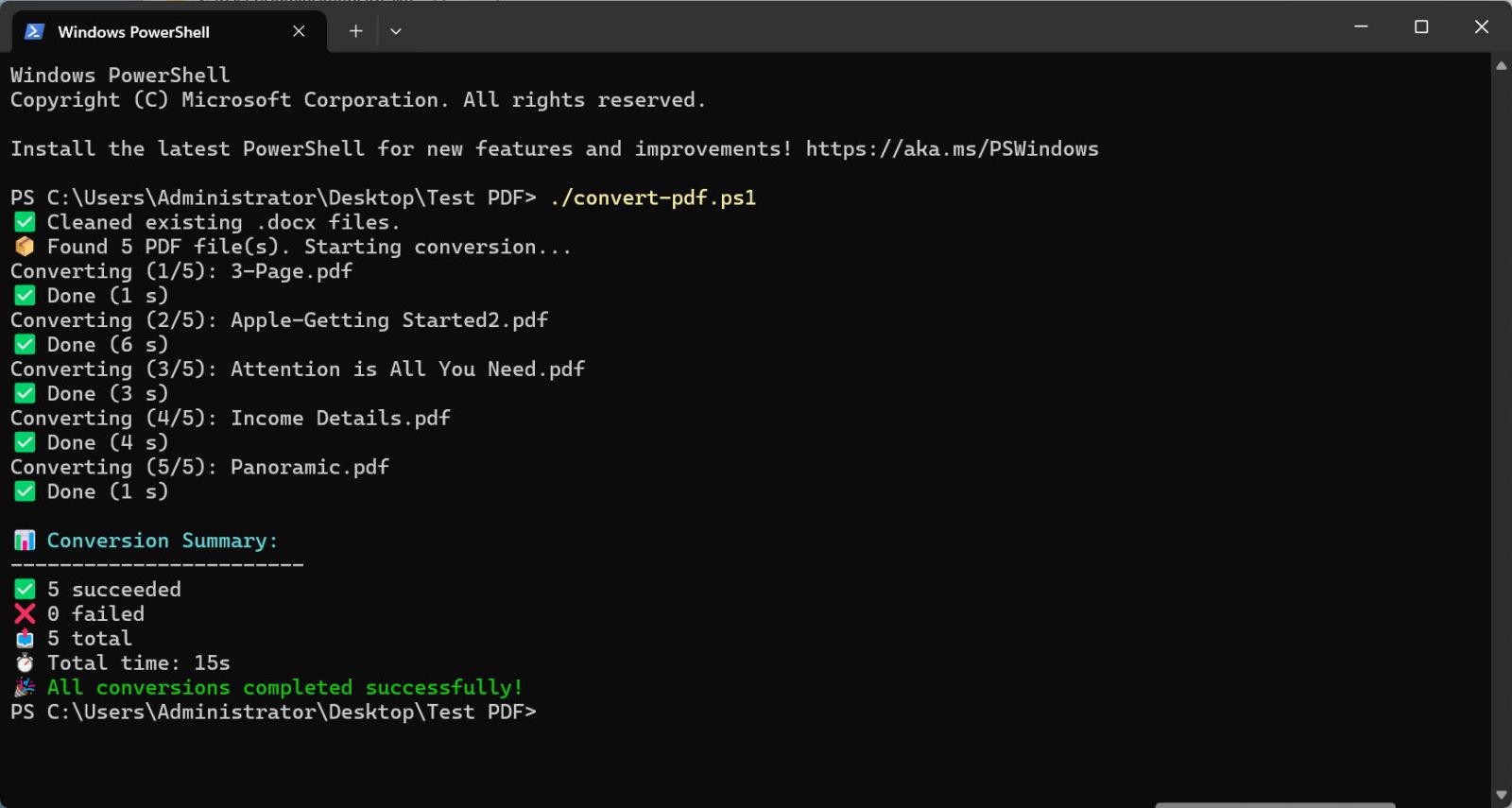
Right-click on pdf-converter.ps1
Select "Run with PowerShell"
✅ Recommended for simple execution.
Open PowerShell in the folder and run:
.pdf-converter.ps1
⚠️ If blocked, run:
Set-ExecutionPolicy RemoteSigned -Scope CurrentUser
The script will:
Clean up any existing output files (e.g., .docx)
Discover all .pdf files in the folder
Convert each file using FPPDFConverter.exe with multi-threading (-t)
Log full output and results
Display a final summary
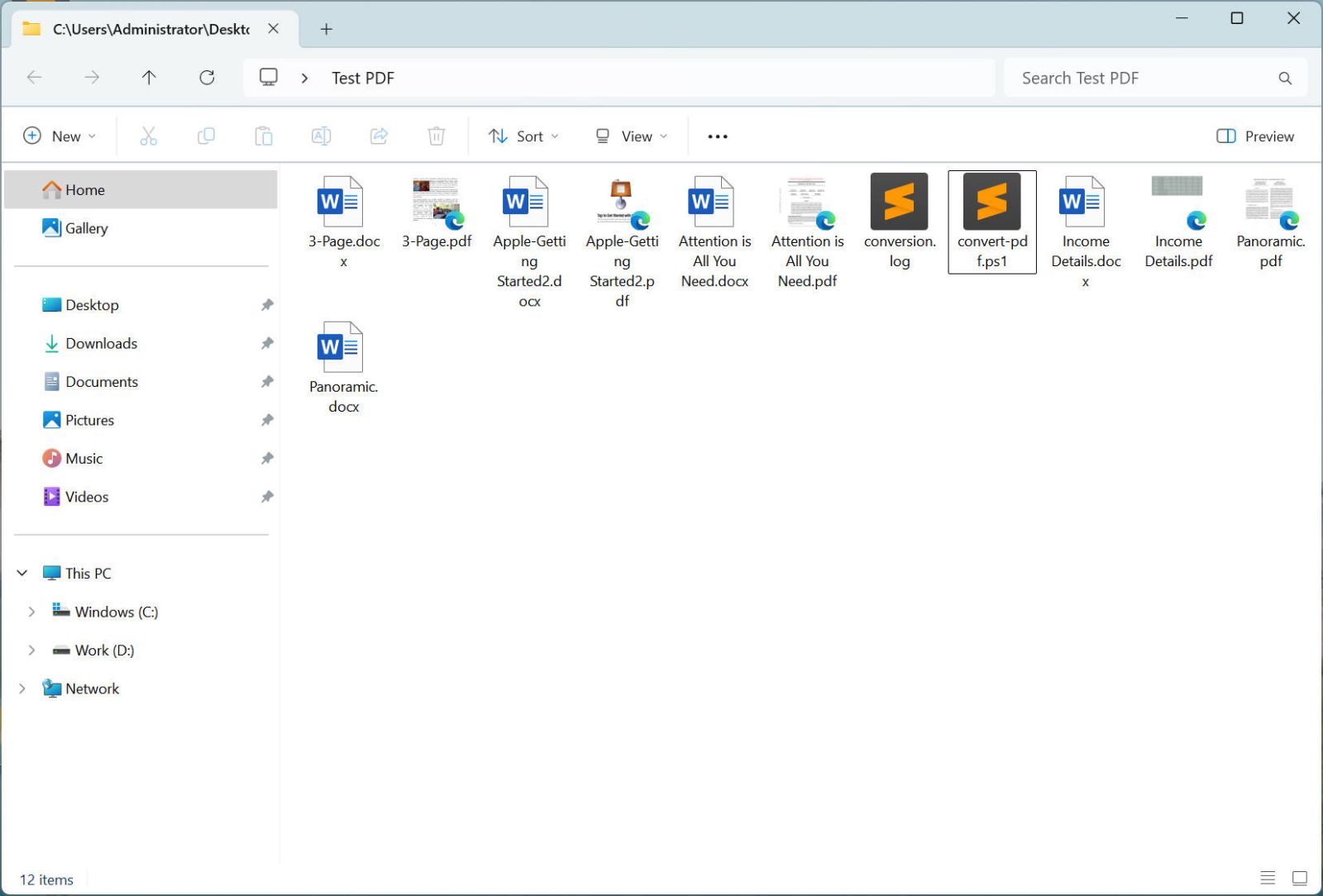
After completion:
✅ Green ✅ Done = success
❌ Red ❌ Failed = failure (check log for details)
A detailed conversion.log is saved with:
Start/end times
Full command output
Duration per file
Final summary
| Issue | Solution |
|---|---|
| Script won't run | Run Set-ExecutionPolicy RemoteSigned |
| Tool not found | Ensure FPPDFConverter.exe is in the same folder |
| Conversion fails | Check conversion.log for missing success message |
| Antivirus blocks .exe | Add an exception for FPPDFConverter.exe |
Use $NUM_THREADS = 4–8 for optimal performance on modern CPUs.
Avoid special characters in filenames: #, %, &, 😊.pdf
For large batches, ensure sufficient disk space and memory.
Always back up original PDFs before conversion.
✅ You're ready to go! Run the script and automate your PDF conversions effortlessly.
# -*- coding: utf-8-with-bom -*-
# ====================================================
#   PowerShell PDF Conversion Script
#   Author: Flyingbee
#   Supports: Custom output folder, multi-threading, logging
# ====================================================

# ============ CONFIGURATION ============
$PDF_DIR        = "."                             # Input directory ("." = current)
$TOOL_PATH      = "FPPDFConverter.exe"            # Path to converter
$OUTPUT_FORMAT  = "docx"                          # Output format: docx, pptx, xlsx, etc.
$OUTPUT_DIR     = "converted"                     # Output subdirectory (default: "converted")
$LOG_FILE       = "conversion.log"                # Log file name
$SUCCESS_MARKER = "Successfully converted!"       # Success keyword
$NUM_THREADS    = 4                               # Thread count per conversion
# =======================================

# Change to PDF directory
try {
    Set-Location $PDF_DIR -ErrorAction Stop
} catch {
    Write-Host "❌ Failed to access directory: $PDF_DIR" -ForegroundColor Red
    "❌ Failed to access directory: $PDF_DIR" | Out-File -Append -FilePath $LOG_FILE -Encoding UTF8
    exit 1
}

# Create output directory if not exists
$OutputPath = Join-Path -Path $PWD -ChildPath $OUTPUT_DIR
if (-not (Test-Path -Path $OutputPath -PathType Container)) {
    New-Item -Path $OutputPath -ItemType Directory | Out-Null
    Write-Host "📁 Created output directory: $OutputPath"
}
"📁 Output directory: $OutputPath" | Out-File -Append -FilePath $LOG_FILE -Encoding UTF8

# Initialize log
$START_TIME_TOTAL = Get-Date
"📄 PDF to $OUTPUT_FORMAT Conversion Log" | Out-File -FilePath $LOG_FILE -Encoding UTF8
"📅 Started at: $START_TIME_TOTAL" | Out-File -Append -FilePath $LOG_FILE -Encoding UTF8
"========================================" | Out-File -Append -FilePath $LOG_FILE -Encoding UTF8
"⚙️  Threads: $NUM_THREADS" | Out-File -Append -FilePath $LOG_FILE -Encoding UTF8
"📤 Output folder: .$OUTPUT_DIR/" | Out-File -Append -FilePath $LOG_FILE -Encoding UTF8
"" | Out-File -Append -FilePath $LOG_FILE -Encoding UTF8

# Clean existing outputs in the output directory
$OutputGlob = Join-Path -Path $OutputPath -ChildPath "*.${OUTPUT_FORMAT}"
Remove-Item -Path $OutputGlob -ErrorAction SilentlyContinue
Write-Host "✅ Cleaned existing .${OUTPUT_FORMAT} files in '$OUTPUT_DIR'."

# Get PDF files (force array)
$PDF_FILES = @(Get-ChildItem -Path "*.pdf" -ErrorAction Stop)
$TOTAL = $PDF_FILES.Length

if ($TOTAL -eq 0) {
    Write-Host "⚠️ No PDF files found."
    "⚠️ No PDF files found." | Out-File -Append -FilePath $LOG_FILE -Encoding UTF8
    exit 0
}

Write-Host "📦 Found $TOTAL PDF file(s). Starting conversion..."

# Counters
$SUCCESS_COUNT = 0
$FAIL_COUNT = 0

# ============ Conversion Loop ============
foreach ($i in 0..($TOTAL - 1)) {
    $PDF_FILE = $PDF_FILES[$i]
    $INDEX = $i + 1
    $PDF_NAME = $PDF_FILE.Name
    $MESSAGE = "Converting ($INDEX/$TOTAL): $PDF_NAME"
    Write-Host $MESSAGE
    $MESSAGE | Out-File -Append -FilePath $LOG_FILE -Encoding UTF8

    $SEPARATOR = "--------------------------------------------------------------------------------"
    $SEPARATOR | Out-File -Append -FilePath $LOG_FILE -Encoding UTF8

    $START_FILE = Get-Date

    # Build output path
    $OUTPUT_FILE_NAME = [System.IO.Path]::ChangeExtension($PDF_NAME, $OUTPUT_FORMAT)
    $OUTPUT_FILE_PATH = Join-Path -Path $OutputPath -ChildPath $OUTPUT_FILE_NAME

    # Build command arguments
    $ARGUMENTS = "-a PDF2Files -i `"$($PDF_FILE.FullName)`" -o `"$OUTPUT_FILE_PATH`" -f $OUTPUT_FORMAT -p all -t $NUM_THREADS"

    # Log command
    "🔧 Running: `"$TOOL_PATH`" $ARGUMENTS" | Out-File -Append -FilePath $LOG_FILE -Encoding UTF8

    # Execute conversion via cmd /c for better path handling
    $OUTPUT = cmd /c "`"$TOOL_PATH`" $ARGUMENTS" 2>&1 | Out-String

    # Write output to log
    $OUTPUT | Out-File -Append -FilePath $LOG_FILE -Encoding UTF8

    # Check success
    if ($OUTPUT -match [regex]::Escape($SUCCESS_MARKER)) {
        $END_FILE = Get-Date
        $DURATION = [math]::Round(($END_FILE - $START_FILE).TotalSeconds)
        Write-Host "✅ Done ($DURATION s)"
        "⏱️  Succeeded in $DURATION seconds." | Out-File -Append -FilePath $LOG_FILE -Encoding UTF8
        $SUCCESS_COUNT++
    } else {
        $END_FILE = Get-Date
        $DURATION = [math]::Round(($END_FILE - $START_FILE).TotalSeconds)
        Write-Host "❌ Failed ($DURATION s)" -ForegroundColor Red
        "❌ Failed: '$SUCCESS_MARKER' not found." | Out-File -Append -FilePath $LOG_FILE -Encoding UTF8
        # Output preview for debugging
        $PREVIEW = ($OUTPUT -split "`n") | Select-Object -First 3
        "➡️  Output preview:" | Out-File -Append -FilePath $LOG_FILE -Encoding UTF8
        $PREVIEW | Out-File -Append -FilePath $LOG_FILE -Encoding UTF8
        $FAIL_COUNT++
    }

    "" | Out-File -Append -FilePath $LOG_FILE -Encoding UTF8  # Empty line
}

# ============ Final Summary ============
$END_TIME_TOTAL = Get-Date
$DURATION_TOTAL = [math]::Round(($END_TIME_TOTAL - $START_TIME_TOTAL).TotalSeconds)
$MINUTES = [Math]::Floor($DURATION_TOTAL / 60)
$SECONDS = $DURATION_TOTAL % 60

Write-Host ""
Write-Host "📊 Conversion Summary:" -ForegroundColor Cyan
Write-Host "------------------------"
Write-Host "✅ $SUCCESS_COUNT succeeded"
Write-Host "❌ $FAIL_COUNT failed"
Write-Host "📤 $TOTAL total"

if ($DURATION_TOTAL -ge 60) {
    Write-Host "⏱️  Total time: ${MINUTES}m ${SECONDS}s"
} else {
    Write-Host "⏱️  Total time: ${DURATION_TOTAL}s"
}

if ($FAIL_COUNT -eq 0 -and $TOTAL -gt 0) {
    Write-Host "🎉 All conversions completed successfully!" -ForegroundColor Green
} elseif ($SUCCESS_COUNT -gt 0) {
    Write-Host "⚠️  Some conversions failed. Check $LOG_FILE for details." -ForegroundColor Yellow
} else {
    Write-Host "💥 All conversions failed!" -ForegroundColor Red
}

# Append summary to log
@"

📊 FINAL SUMMARY
---------------
✅ $SUCCESS_COUNT succeeded
❌ $FAIL_COUNT failed
📤 $TOTAL total
⏱️  Total time: $($MINUTES)m $($SECONDS)s
🧵  Threads: $NUM_THREADS
📁  Output: .$OUTPUT_DIR/
📅 Finished at: $END_TIME_TOTAL
"@ | Out-File -Append -FilePath $LOG_FILE -Encoding UTF8
Flyingbee Software
Creative Products
Online Store
Social Connections
 United States
We uses cookies to give you the best experience, analyze traffic, and personalize content. By continuing using our Site, you agree to our use of cookies. The information collected might relate to you, your preferences, or your device, and is mostly used to make the site work as you expect it to and to provide a more personalized web experience. However, you can choose not to allow certain types of cookies, which may impact your experience of the site and the services we are able to offer. Read our Privacy Policy or manage your cookie preferences. If you would like to submit an opt-out request with respect to your non-cookie personal information (e.g., your email address), find our support email address to opt-out of sale/sharing/targeting with respect to non-cookie personal information.



 PDF Printer
 Air Printer
 PDF Scanner
 Photo to PDF
 Flyingbee Reader
 PDF Merger
 PDF Splitter
 PDF Compressor
 PDF Password Remover
 PDF Encryptor
 PDF Converter
 PDF to Word
 PDF to Powerpoint
 PDF to Excel
 PDF to Text
 PDF to JPEG